

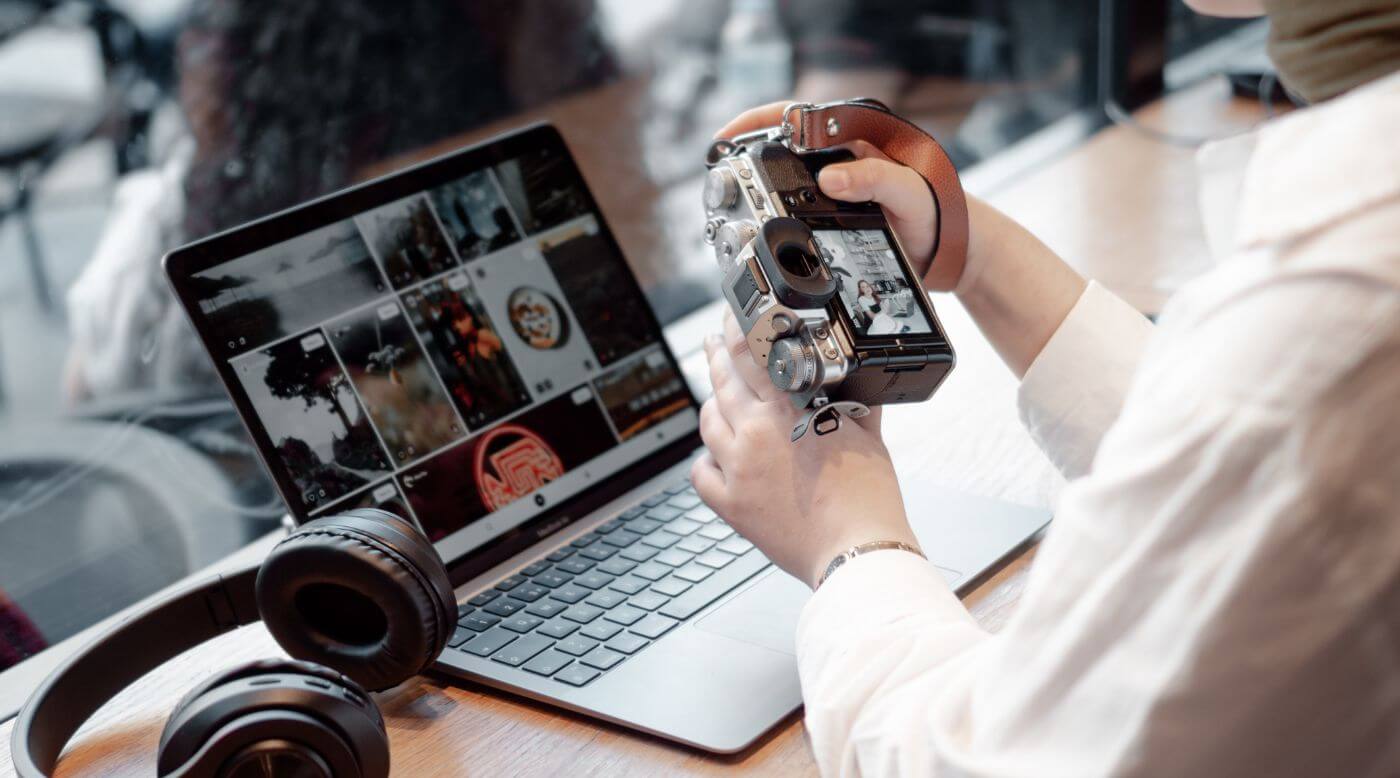
If your website feels a bit sluggish, your images are often the first place to look.
Photo optimisation is one of the simplest ways to improve page speed and give your SEO a boost, without changing your design or your content. And while we’re talking images, it’s worth saying this upfront: orientation and cropping matter. A landscape photo won’t magically behave like a portrait, and forcing the wrong shape into the wrong space is one of the quickest ways to make a page look messy (or break your layout entirely).
In this guide, I’ll walk you through the practical, non-fussy steps to get your images working for your website, not against it.
Image optimisation is the process of reducing image file size while keeping the image looking sharp.
It matters because:
Big image files are one of the most common causes of slow websites.
When images are oversized (either in dimensions, file size, or both), they:
The goal is simple: serve the smallest file that still looks great.
Picking the right format makes a bigger difference than most people expect.
Best for photographs and images with lots of colour variation.
Best for logos, icons, screenshots, text-heavy graphics, and images needing transparency.
Best for simple animations.
Best for logos and icons (vector graphics).
WebP is a modern image format designed for the web. In many cases, it gives you smaller file sizes than JPEG or PNG for similar visual quality.
If your website platform supports WebP (many do now), it’s often one of the easiest wins for page speed.
If you’re not sure, a good rule of thumb is:
Compression is where you’ll get the biggest speed wins.
Shrinks the file without visible quality loss.
Good options include:
Shrinks the file by removing some data. If done carefully, most people won’t notice.
This is especially useful for JPEGs and WebP.
Tip: don’t aim for perfection. Aim for “looks great on a normal screen”.
If your logo is a PNG and it’s being used all over your site, switching to SVG can be a quick win.
Alt text is the short description attached to an image in your website.
It helps:
Best practice:
Example:
A common mistake is serving one huge image to everyone, even if they’re on a small phone.
Responsive images let the browser choose the most appropriate size based on the screen.
If your platform supports it, look for:
Even if you’re not touching code, many modern website builders and WordPress plugins can handle this for you.
Lazy loading delays loading images until the user scrolls near them.
This improves initial page speed because the browser isn’t trying to load every image straight away.
A practical approach:
Image SEO isn’t just file size and alt text. File names and organisation help too.
Use descriptive file names with hyphens.
Keep your uploads organised, especially if your site is image-heavy.
For example:
It’s mainly for your sanity, but it can also provide extra context.
Depending on your workflow, these are worth a look:
In addition to these tools, there are several online resources and guides that can help you stay up-to-date with the latest best practices for photo optimisation. Websites like Google’s Web.dev and Moz offer comprehensive guides on image optimisation, SEO, and web performance.
Photo optimisation is one of those behind-the-scenes jobs that pays off everywhere: faster pages, happier users, better SEO, and a smoother mobile experience.
If you want a simple starting point, do this:
If you’d like to read more about How to Develop Content for your Not-for-profit check it out here.